table of contents
How a Tray Recognition System Turns Multiple Dishes into a POS Bill
A tray recognition system uses images to identify supported food items or dishware on a tray, then converts those findings into structured data for a downstream application. In cafeteria checkout, the application maps accepted results to the POS catalog, checks quantities and exceptions, and prepares a basket for payment.
For food-service ISVs, the recognition-to-basket boundary is the critical integration point. The camera can propose what is present, while the POS remains responsible for prices, transaction rules, and the final bill.
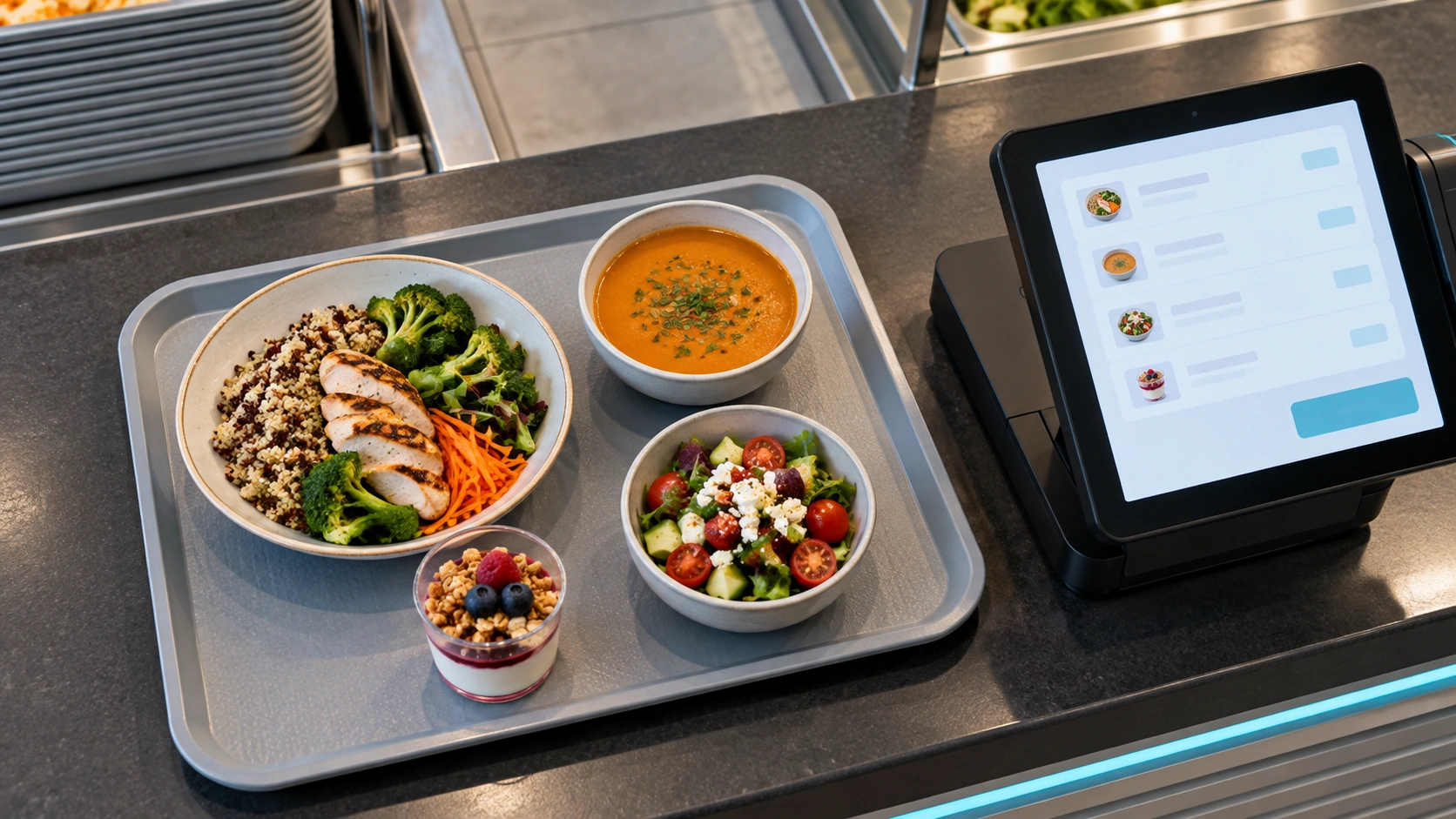
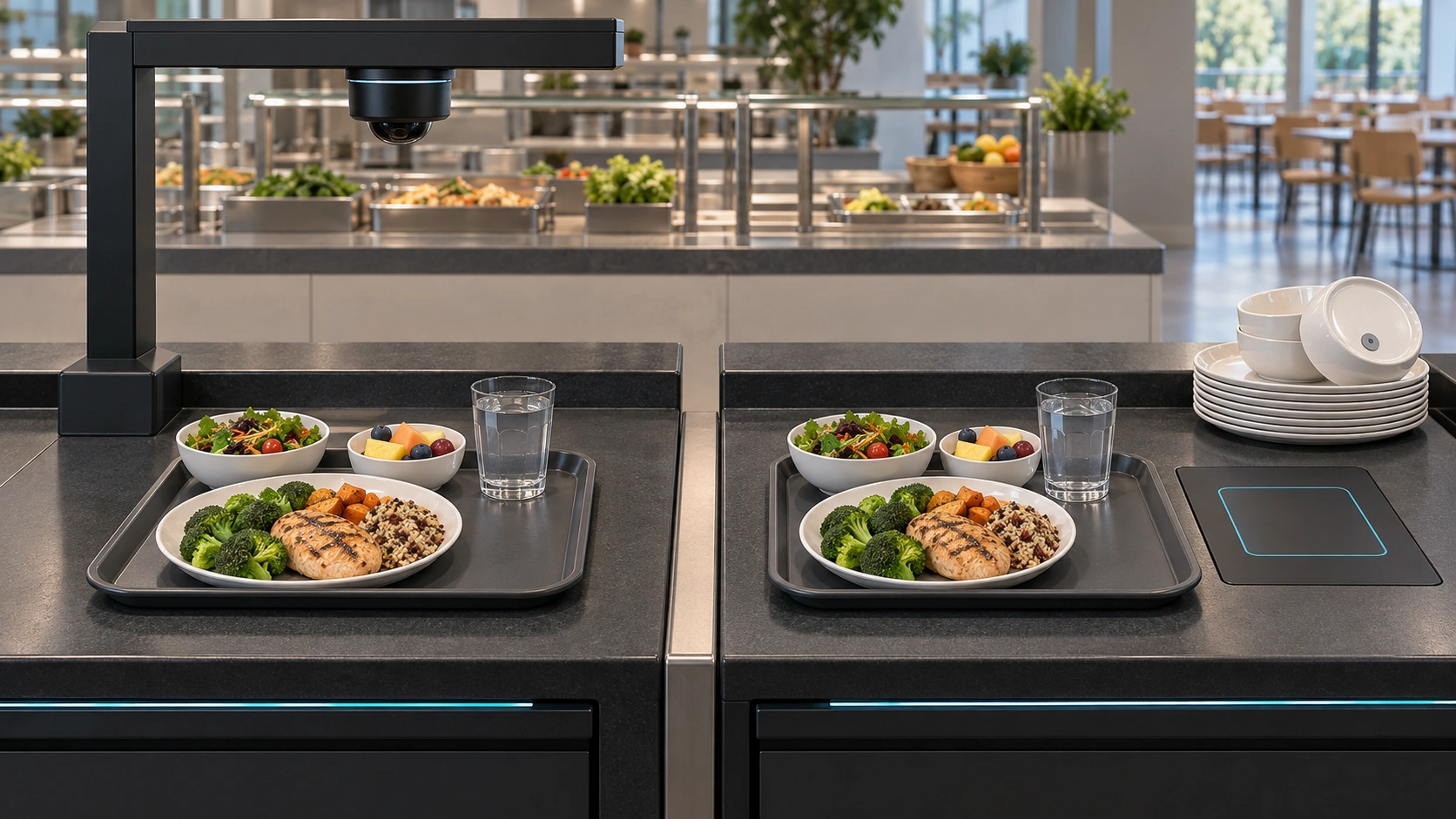
AI-generated conceptual illustration, not an actual customer installation.
First distinguish the recognition modes
The term “tray recognition” can describe several workflows. One system may recognize food appearance; another may recognize a plate type associated with a meal category. A combined configuration may use food and dishware context together.
Ask which mode is being evaluated. If the system recognizes dishware, a different meal served in the same bowl can require a mapping change. If it recognizes the food, similar appearances, portion changes, and occlusion become important test conditions.
Independent product descriptions also distinguish controlled tray workflows from general meal-photo recognition. A checkout integration should therefore be evaluated against its own catalog rather than assumed to identify every possible meal.独立的产品描述还区分了受控托盘工作流与一般餐食图片识别。因此,结账集成应基于其自身的目录进行评估,而非假设其能识别所有可能的餐食。
The six stages from tray to bill
1. Prepare the product catalog
Each sellable dish needs a stable identifier and the information the POS uses to price it. Define how an item is sold: per portion, per item, by weight, or as part of a set.
Vision does not establish a chargeable weight merely by identifying a dish. Weight-based sales require the appropriate weighing input and business rules.
2. Configure the capture area
Choose the supported camera and define the recognition region. The view should cover the intended tray positions without relying on the cashier to keep correcting alignment.
Test the counter, tray, plates, covers, and lighting together. Specify what happens when a hand remains in view or the tray is only partly inside the approved area.
3. Capture a usable scene
Trigger recognition through the supported user action or automatic detection mechanism. A stable capture reduces disagreement between what was analyzed and what the customer expects to purchase.
Keep a clear retry path for movement, an incomplete view, or a failed service response. A retry should not create another copy of the same basket.
4. Identify items and resolve quantities
Detection locates relevant regions, recognition associates them with supported catalog items, and the application resolves quantities according to the configured workflow.
The presence of multiple food regions does not automatically mean every portion is independently billable. A bowl containing several ingredients may be one sellable item, while two identical desserts may be two items. Encode the restaurant’s selling logic explicitly.
5. Review and correct the proposed basket
Show the item names and quantities in a form the shopper or cashier can verify. Define the behavior for unknown food, ambiguous results, duplicate candidates, and inactive products.
Confirmation can be part of a useful workflow. A transparent correction step is preferable to quietly assigning a product the system cannot distinguish reliably.
6. Commit the accepted basket to the POS
Once accepted, map the result to the existing transaction. Preserve one accepted version of the basket and define how later changes are handled.
The POS applies prices, promotions, and payment rules. Record success or failure so the recognition service and the application do not disagree about whether the items were added.
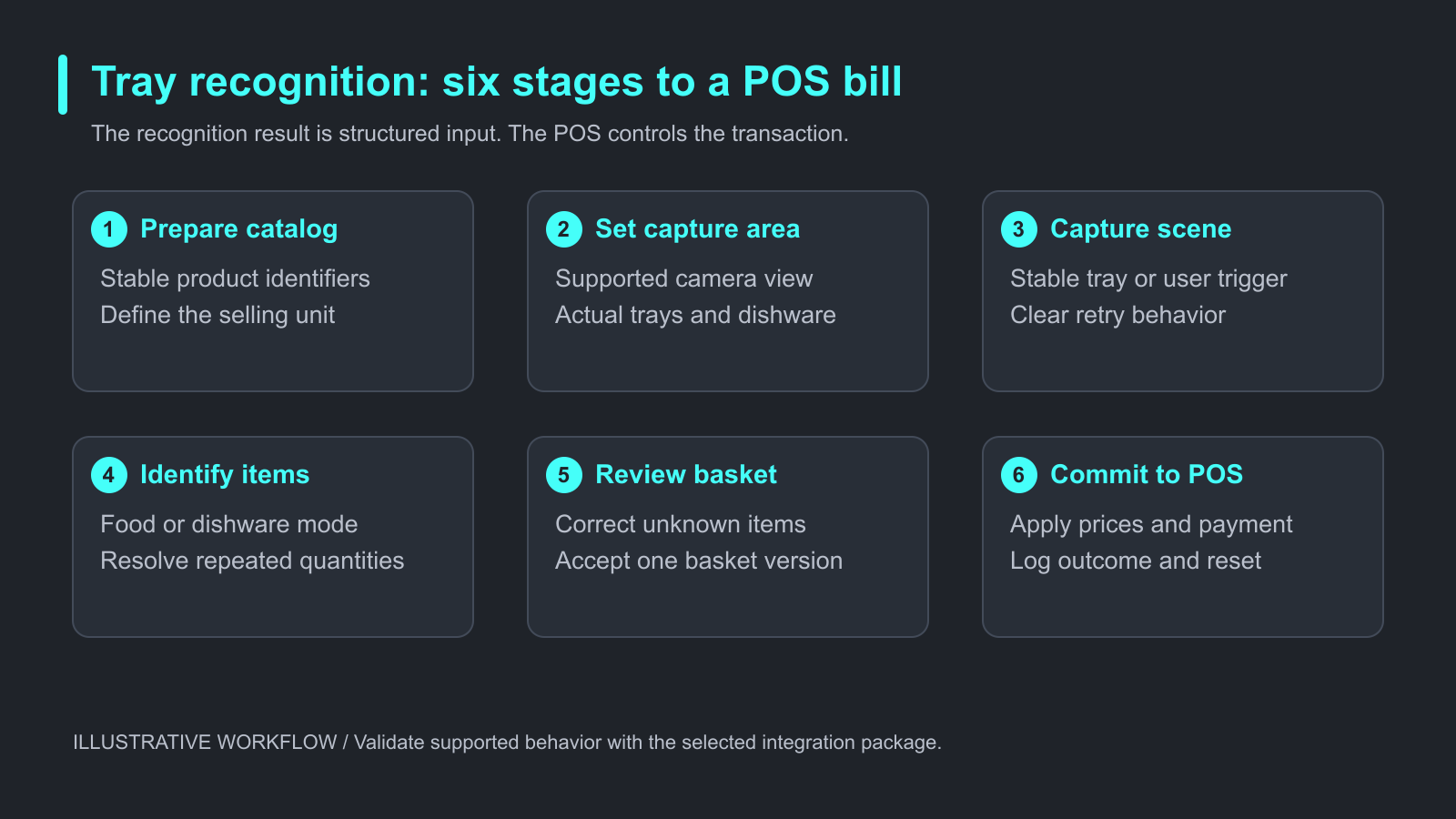
Illustrative tray-to-POS workflow. Confirm basket contents before committing accepted items to the POS.
Assign ownership across the integration
| Responsibility | Suggested owner to confirm during design |
|---|---|
| Camera access and recognition | Supported AI service or integration package |
| Product master and current prices | POS or food-service business system |
| Food-image association | Approved local learning and catalog process |
| Basket acceptance and duplicate prevention | POS integration logic |
| Corrections and staff authorization | Checkout application and operating policy |
| Tender, payment status, and receipt | Payment and POS systems |
| Learning feedback and updates | Defined supplier and operator process |
This is a proposed responsibility model, not a statement that each function is included automatically in a particular SDK.
Understand local service deployment
iCanteen materials describe Windows and Android services, local learning, product synchronization, recognition, and feedback operations. The internal references distinguish Windows HTTP/WebSocket communication and Android service integration using AIDL. Obtain the current package documentation before coding against an interface.
For the underlying Android concept, Android’s AIDL documentation explains interprocess communication between a client and a service. It does not specify iCanteen method names or response fields.
Local recognition can reduce reliance on a remote inference request. Activation, remote catalog updates, reporting, payment, and cloud backup may have separate dependencies. Test each required capability rather than labeling the whole checkout “offline” based on one local component.
A practical tray-to-basket acceptance exercise
Use a deliberately small menu that contains repeated portions, a similar-looking pair, and an unknown item. This is a proposed test procedure, not a claim about measured outcomes.
Prepare reference baskets and run a normal tray, a tray with a repeated dessert, a tray with an obscured dish, a tray changed after recognition, and a tray left in place after payment. Include a service restart and a retry after an interrupted basket update.
For each attempt, compare the reference basket with the proposed and accepted baskets. Save permitted captures of the scene and UI, plus the returned item identifiers and transaction outcome. Measure complete-basket correctness, quantity errors, correction time, duplicate additions, and successful recovery.
This exercise tests the checkout integration as well as recognition. It can expose a correct food result that becomes a wrong bill because of stale prices, duplicate inserts, or an incorrect selling unit.
Frequently asked questions
Is tray recognition the same as food recognition?
Not always. A tray workflow may identify food, dishware, or a supported combination. Confirm the mode and its catalog assumptions.
Can several identical dishes be charged correctly?
The workflow must detect or resolve separate portions and preserve the accepted quantity. Test repeated items rather than assuming multi-item recognition guarantees correct counting.
Does the recognition system replace the POS?
It can provide structured item information to a POS. Pricing, tenders, receipts, and transaction control remain separate responsibilities unless explicitly included in the agreed solution.
What happens to an unknown item?
Define a supported fallback such as menu selection, staff confirmation, or another identifier. It should not silently receive an unrelated product price.
Can a tray stay under the camera after payment?
The application should define this state and prevent duplicate basket creation. Validate removal and session reset behavior in the pilot.
What information is needed for an integration review?
Provide the menu, selling units, product identifiers, dishware, hardware, OS, camera arrangement, and intended checkout flow.
Move from recognition to a usable checkout flow
Treat the tray result as structured input to a controlled transaction. A reliable deployment connects item identity, quantities, catalog rules, correction, and basket acceptance without assuming that a camera alone completes checkout.
For the broader context, return to the smart cafeteria guide and review the iCanteen SDK overview for POS vendors. To assess your implementation, request the relevant SDK overview with your menu and POS requirements.